
InterClass · Online classrooms for schools and learning centres
Teach online. Feel like you’re in the classroom.
Share your lesson, then circle, underline and annotate it just as you would on a board. Students see every stroke, raise their hands, answer polls and work in groups. All in one application.
- Windows, macOS, Linux & browser
- Dedicated server for your institution
- Lesson recording

Watch the tour
From joining a class to drawing on your lesson
A tour of the real application, with English narration and on-screen captions.
People, classes and figures in the video are illustrative.
A lesson on InterClass
From the first click to the recording arriving back
Follow a 45-minute maths lesson in the order a teacher actually teaches it. Each screenshot shows the application in a sample class.
Before class
Join with one click
Students open the session from their school’s learning platform. The app takes them straight to the right class, with no room code or password. Without the app, they can join in their browser.
- Check the microphone and camera
- Test the speakers
- Check the connection before class
Get started
Share exactly what the class needs to see
Share a whole screen, one window or a selected area. Even minimised windows appear in the picker. A green outline makes it clear what your students can see.
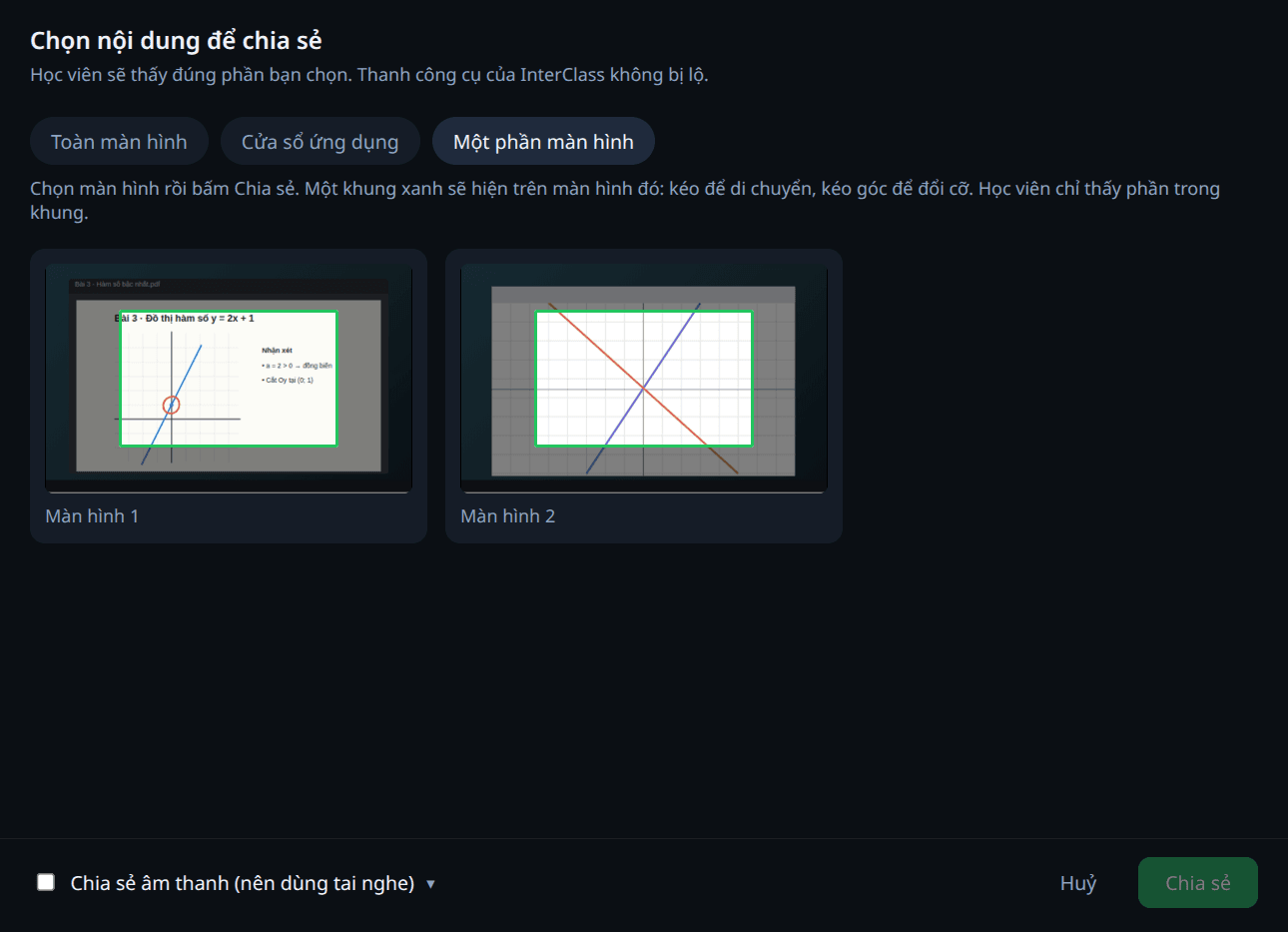
Select a screen, start sharing, then move and resize the green frame around the area you want to share. Teach
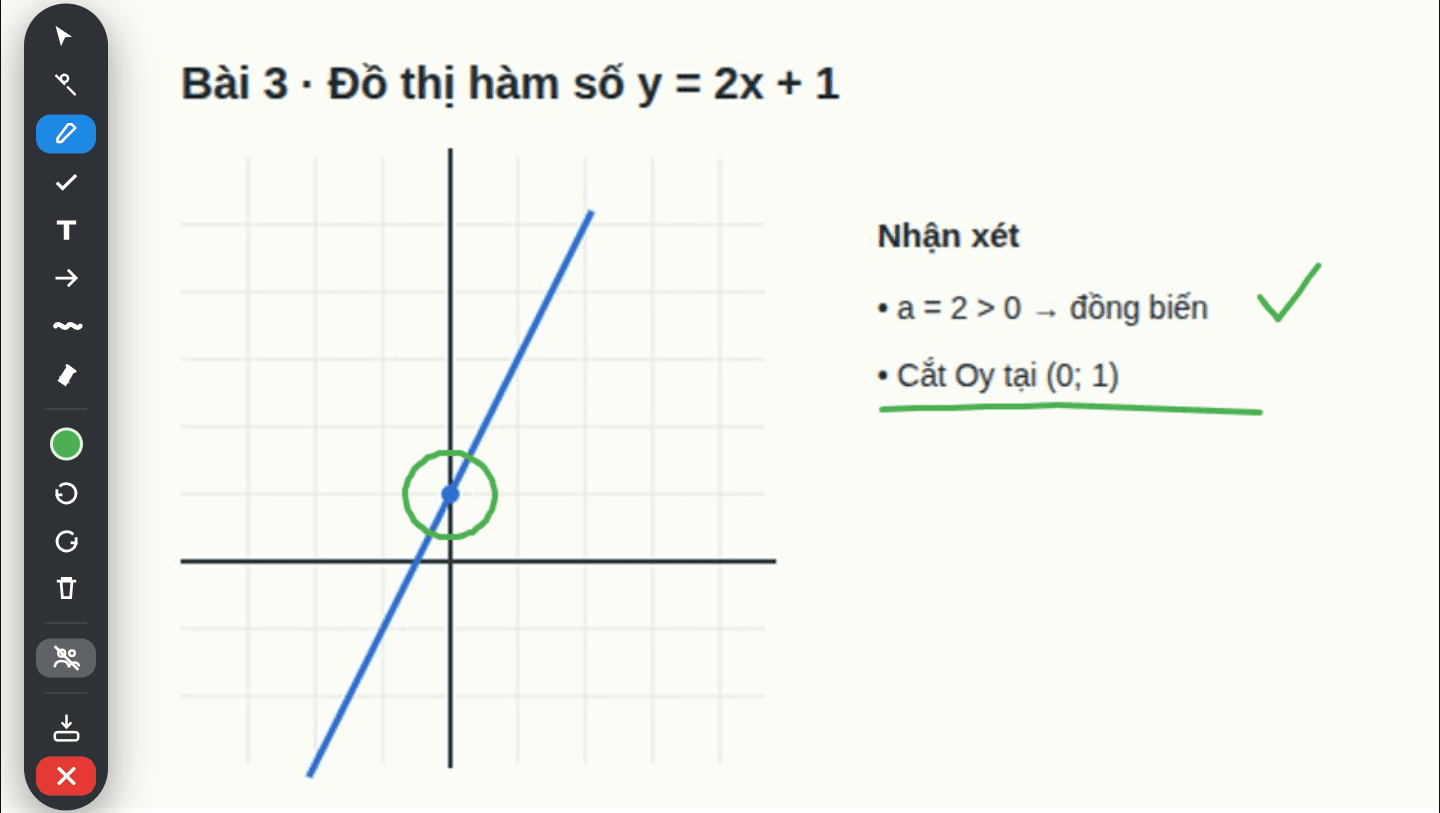
Write on your lesson as if it were a board
Pens, fading ink, a laser pointer, highlighters, twelve shapes and typed text. Every stroke appears on students’ screens with its author’s name. Late arrivals see the annotations too.
- Let students annotate together when reviewing work; this is off by default.
- Erase whole strokes, or clear all annotations, your own, or students’ marks.
- Save the lesson and annotations together as a PNG or PDF.
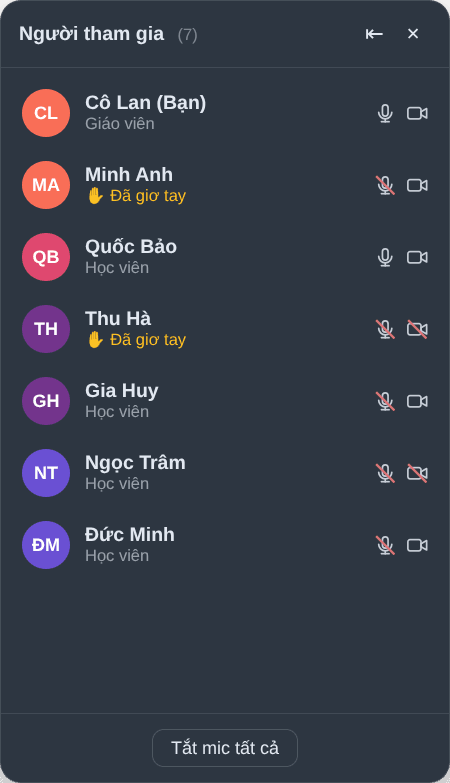
A raised hand triggers a gentle chime, even while sharing. Click a student’s microphone to mute it. Group discussion
Make groups, set a timer, then drop in
Assign students automatically or arrange them yourself. Apply your choices to move everyone at once. When time runs out, everyone returns to the main room.
- Students can call the teacher; see who needs help and join their room.
- Broadcast one message to every group, such as “Two minutes left”.
- Choose whether students can select rooms or return to the main room themselves.
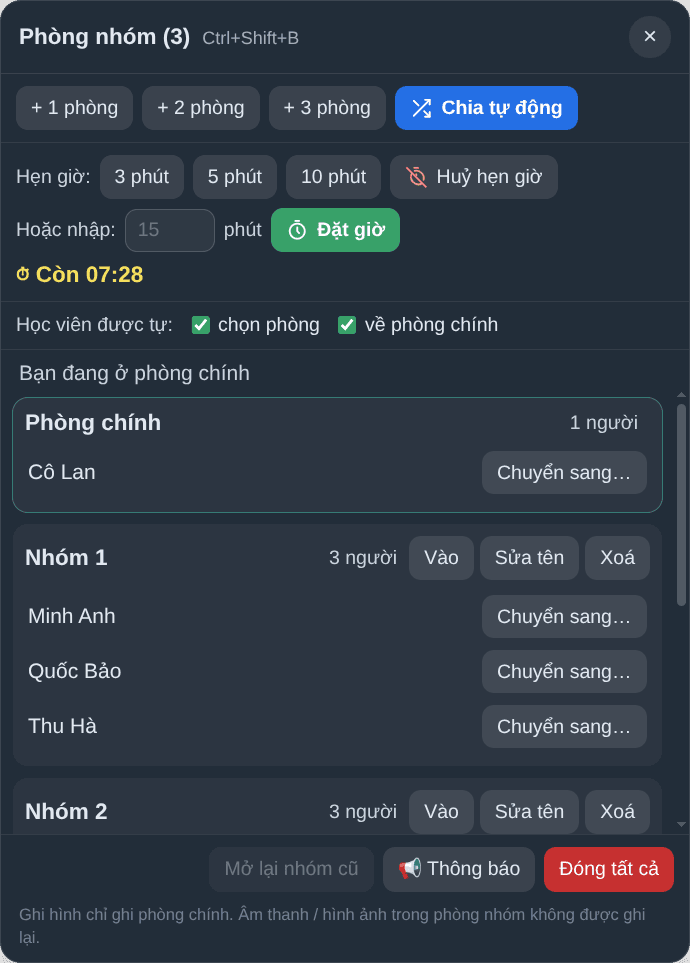
Group assignments, a timer and announcements in one window. Quick check
Poll the class and time their work
Ask a question with one or multiple correct choices. Results update as students submit their answers.
- Start a 3, 5 or 10-minute timer, or choose your own duration.
- The timer changes colour in the final minute, ticks for the last ten seconds and rings at the end.
- Keep track of the remaining time in the floating toolbar while sharing.
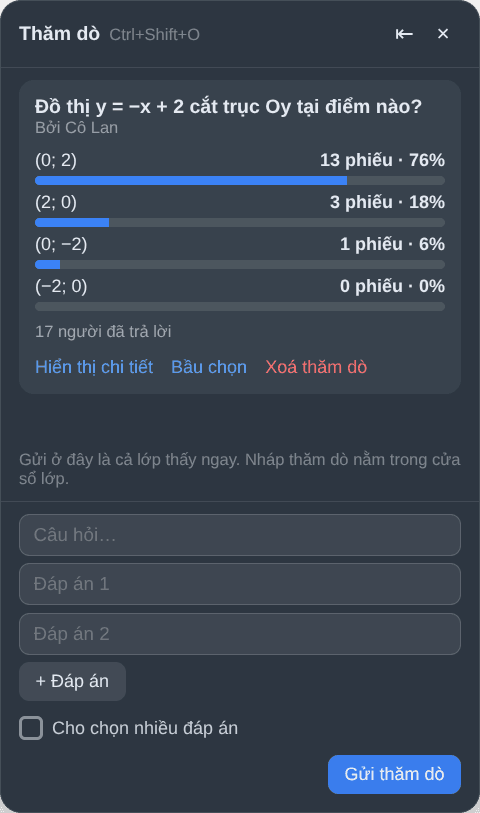
The poll results shown are from a sample class. Finish
End the class. The recording comes back automatically.
End the session for everyone. The server records the lesson and sends it back to the learning platform for students to revisit, according to your institution’s settings.
- Attendance from join and leave times
- Save chat with arrival times
- Previous messages remain when rejoining the app
Floating windows
Keep your teaching tools within reach
While sharing, the classroom minimises. Chat, participants, polls and breakout rooms become small windows that arrange themselves without covering your lesson or appearing in the shared screen.
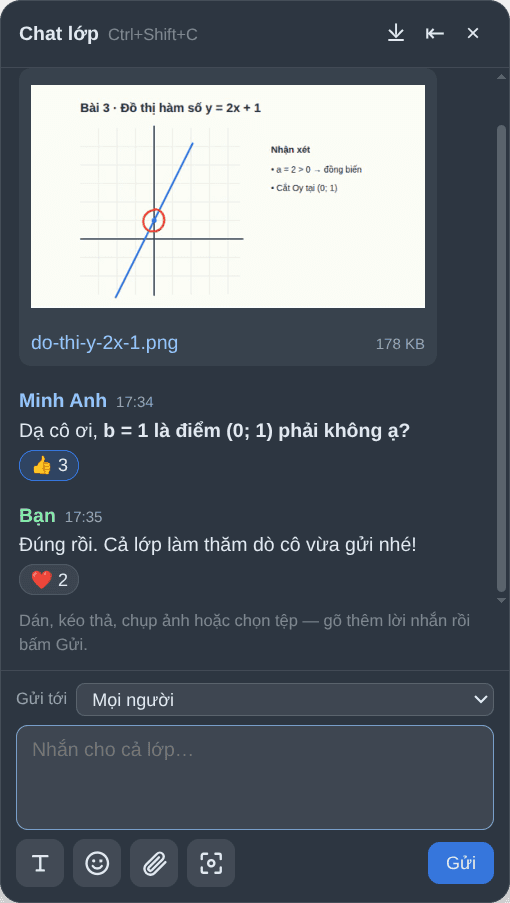
Class chat
Send images and files up to 100MB. View images directly in chat, format messages, add reactions and message students privately.
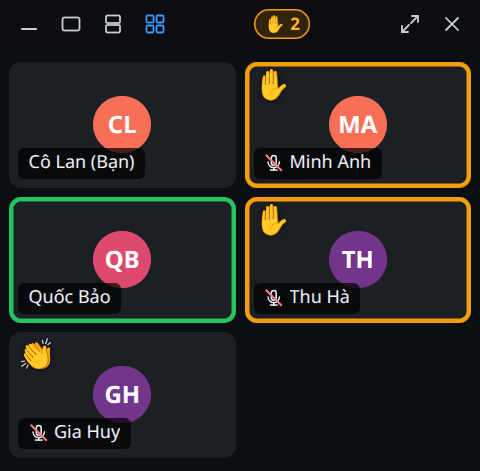
Mini classroom
Four viewing modes and the option to pin a student. Green outlines show who is speaking; orange outlines show raised hands.
Floating controls
Microphone, video, chat, groups, polls, timers and drawing tools. Position the toolbar along any edge; it collapses when you do not need it.
Teachers stay in control
- Manage microphones and cameras
- Mute one student or everyone. Invite students to enable their microphone or camera; they decide whether to accept.
- Waiting room
- Admit people individually when needed.
- Capture and annotate
- Select an area, add notes and send it to chat with a message.
- Share computer audio
- Play a lesson video so the whole class can hear.
- Virtual backgrounds, noise filtering and auto framing
- Keep the camera centred as you move in front of the board.
Students stay with the lesson
- See every annotation
- Follow the teacher’s marks in the application or browser.
- Raise a hand or react
- The teacher sees it even while sharing a screen.
- Message the teacher privately
- Separate conversation tabs help avoid sending to the whole class by mistake.
- Stay connected on a weak connection
- The app reconnects automatically. When bandwidth is low, video pauses to prioritise audio.
- Vietnamese and English
- Choose the application language in Settings.
For your institution
Your classroom. Your dedicated server.
Each institution has its own InterClass system, address and server, with lesson data kept separate from other organisations.
Your address and application
Run classes at your institution’s own address. The desktop application is preconfigured to connect there and updates when a new version is available.
Connect your learning platform
Students join from their course page without a second account. Attendance and lesson recordings return to the learning platform.
Recording and operations
Record audio and video on the server, organised by date. Monitor classes, participants and server load in real time.
FAQs
Before your first class
Do students have to install the application?
No. Students can join in a browser and still see annotations, raise their hands, chat, answer polls and join breakout rooms. We recommend the desktop application for teachers because it supports drawing on the actual shared screen, floating controls and sharing part of a screen.
Where is lesson data stored?
Recordings, shared files and session logs are stored on the server dedicated to your institution. Your institution decides how long to retain them.
What happens on a weak connection?
The app reports a lost connection and reconnects automatically. When bandwidth is low, other participants’ video pauses to preserve audio, with an explanation on screen. Students can check their connection before joining.
How much training do teachers need?
Controls follow familiar video-meeting conventions. Teachers and students use the same drawing tools, so one introduction covers both.
Can we try it before deployment?
Yes. We can prepare a sample classroom for your teachers to teach a lesson, with students joining from both the application and a browser.
Teach a trial lesson on InterClass
Tell us how many classes you run, the number of students per class and which learning platform you use. We’ll prepare a sample classroom and arrange a time for your teachers to try it.
Contact us
Fill in the form and our team will get back to you shortly.